CASTONAUT GUIDE/FOR CURIOUS BUILDERS
YOUR FARCASTER WORKSTATION
Make it
your own.
Start with Castonaut, then make the whole route yours: run the client on your computer, connect a Snapchain node you control, and authorize a limited Farcaster app key.
The hosted client is the quick way to explore. Running your own client and node gives you more control over the software and the read path. You can start with the client and add your node later.
01QUICKSTART3 STEPS
Three steps to your own setup.
Use the hosted client first if you like. The self-run route below keeps the client on your computer and reads through a node you operate.
THE CAST PATHWho runs each part
YOUR COMPUTERCastonaut clientFeed, local Desk, signing
↔YOUR NODESnapchain read nodeStores state · serves API · relays writes
↔VALIDATOR NETWORKFarcaster validatorsDecide blocks · replicate messages
Validators run the network consensus. Your read node follows and serves network data; it is not a validator and does not vote.
Before you beginNode.js 22, Google Cloud CLI, a billing-enabled GCP project, and an existing Farcaster account with storage. The node costs about $0.25/hour plus network charges; credits and trial eligibility vary. The VM has a public IP; local client requests reveal your computer’s public egress IP to your node.
Check billing before provisioning.
A budget is only an alert. A stopped VM can still incur disk and reserved-IP charges. Run npm run destroy -- us-central1-a only when finished: it deletes the VM, disk, firewall rule, and synced data.
Prerequisites · one-time setup before the three commands
Install Node.js 22, the Google Cloud CLI, and this repo’s dependencies:
Sign in, choose a project with billing enabled, and select it:
Run gcloud config set project YOUR_PROJECT_ID with your project ID. Verify billing/trial credit and create a budget alert in Cloud Billing before provisioning. The three numbered commands below are the actual provision → start → connect flow.
01
CREATE
Provision your node.
Creates a 4-vCPU VM and 2-TB disk. Review the estimate; type CREATE to proceed.
npm run provision -- us-central1-a02
SYNC
Start Snapchain.
Follow the official read-node setup prompts. Leave the VM running while the first snapshot syncs; it can take hours.
npm run node -- us-central1-aIn another terminal, repeat this check until it says READY and the endpoint is reachable:
npm run node:check -- us-central1-a03
OPEN
Connect Castonaut.
Keep the node running and open the local link. Connect an existing Farcaster account with storage using its recovery phrase. Castonaut checks the account in this tab, then uses it to authorize a separate, scoped browser key. This authorization is gasless; it needs no wallet extension or Optimism transaction. A test cast is optional and will be public.
npm run client -- --zone us-central1-a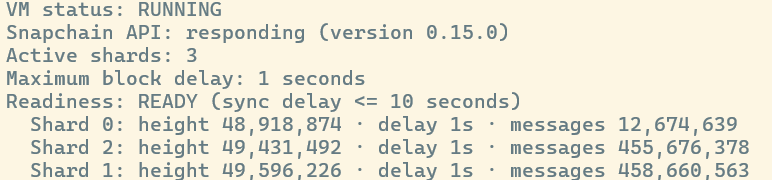
If sync is slow
First sync can take hours. Run npm run node:status:once -- us-central1-a more than once and compare shard heights and delays. If heights are advancing and delay is falling, leave the VM running and check again later. If progress stalls, inspect the status output for disk space, peer mesh, and recent logs. Don’t delete the database or repeatedly recreate the node to force sync.
Monitoring and cleanup commands
Use this read-only snapshot to inspect sync, disk, and container health:
npm run node:status:once -- us-central1-aCleanup asks you to type DELETE. It removes the VM, disk, firewall rule, and node data. Google trial details ↗Run your own client?
The hosted site needs no setup or personal node. To run the client locally, clone the repo, run npm ci, then connect it to a node you trust:
npm run client -- --node-url https://YOUR-NODEThis opens a local web app, not a packaged desktop app. If you use your own public node, it can see your computer’s public IP.
MIT source on GitHub ↗Use your own computer?
A home node needs 4 CPU cores, 16 GB RAM, about 2 TB storage, stable internet, and public ports. Its peers can see your home public IP. Node requirements ↗
02PROTOCOL BASICSTHE PIECES BEHIND THE WINDOW
Small pieces.
Clear responsibilities.
⌑
Farcaster identity
A Farcaster account has a custody address registered in the Optimism ID Registry, which maps it to a numeric Farcaster ID (FID). Castonaut derives and checks that account from your recovery phrase locally. A username or FID alone is never treated as proof of identity.
⌑
Custody address
The Ethereum address registered to the FID. It authorizes signer changes and controls the account’s recovery path.
KEY+
Scoped app key
A separate Ed25519 key signs app messages. Gasless KEY_ADD is authorized by an EIP-712 custody signature and restricts message types.
▤
Storage rent
An existing FID needs protocol storage units to publish messages. This client does not register new accounts or buy storage.
✉
Snapchain message
A signed, encoded message such as a cast, follow, or reaction. Castonaut signs it in your browser and sends it through the app service.
R ≠ V
Read node / validator
Your read node follows decided blocks and serves APIs. It can accept a signed message and relay it to validators; validators propose and vote on blocks.
A CAST’S JOURNEY
01Browsercreates + signs
→02Your read nodeaccepts + relays
→03Validatorsinclude in a block
→04Read backconfirm merge
A successful submit response means the node accepted the message for relay. The app checks again and only reports publication after the message appears in network state.
03OPERATOR FIELD GUIDEKEEP IT HEALTHY
Good habits.
Fewer surprises.
✓
Check readiness.
Run npm run node:check -- us-central1-a. Connect only when it reports READY and the public endpoint is reachable. Recheck later; a node can fall behind.
⌁
Watch the basics.
Run npm run node:status:once -- us-central1-a. Look at shard delay, free disk, and container health. Save the output when troubleshooting; a single sample is not a trend.
$
Check billing, not just uptime.
Set a budget alert and inspect actual charges. Stopping a VM can stop compute charges, but attached disks and reserved IPs may still cost money. Delete resources only when you no longer need their data.
Google Cloud billing behavior ↗▤
Don’t reset data to fix sync.
Keep the data disk mounted and check logs, network, and disk space first. Never remove Snapchain’s data directory as a routine fix; a reset discards the local database and may mean another long sync.
◎
Know what is public.
Hosted node requests come from the host service; local mode connects from your computer’s public IP. This setup exposes the node endpoint over plain HTTP to the internet. Treat it as public: never send credentials through it, and don’t assume it hides your IP.
?
Pause before retrying.
Check readiness and recent logs first. If a signer or cast confirmation is pending, check its status before creating another key or resending. A relay response alone does not prove the cast was committed.
Keep credentials out of the repo.
Never commit recovery phrases, private keys, service-account JSON, or local .env files. Treat terminal output and screenshots as public if they contain credentials or private endpoint details.
Quick recovery: what should I check?
Node says NOT READY: wait for sync, then rerun npm run node:check -- us-central1-a. Compare the shard delays over time; do not clear the database to force progress.
Endpoint is unreachable: confirm the VM is running, verify its current IP and firewall, then inspect recent logs. This setup opens the node ports publicly and does not configure HTTPS; add a TLS proxy and suitable access controls before treating it as a private service.
Disk is nearly full: pause the test and review disk use before continuing. Do not delete Snapchain data files by hand.
Signer is still pending: use the client’s check-again action and wait for the signer to appear. Don’t authorize another key just because confirmation is slow.
Cast is not visible: a submit acknowledgment only means relay acceptance. Refresh the feed or check network state before resending to avoid duplicate casts.
Done for now: stopping the VM preserves its disk and data but may leave storage/IP charges. Destroying it removes the disk and synced data too.
04KEYS & SAFETYONE CAPABILITY AT A TIME
Your account
stays in control.
Use your Farcaster recovery phrase to authorize a separate app key. It stays in this browser’s IndexedDB as non-extractable Web Crypto key material.
ACCOUNT SECURITYSCOPED APP KEY
Know what you’re authorizing.
Your custody account signs a limited authorization for a separate app key. It is a gasless message signature, not a transaction. The phrase is processed in the tab, cleared from the field, and never saved or sent to the server. Website code can read it while you enter it, so only use phrase sign-in on a site whose code and operator you trust.
- The key is limited to social actions. Its 30-day sliding expiry can refresh with use, so an active key may stay valid; revoke it from the account’s signer controls to disable it sooner.
- JavaScript cannot promise secure zeroization from memory. Close the page after setup and protect your device.
- “Forget this browser” removes the local app key but does not revoke the network signer. Revoke the signer separately from the account’s signer controls.
- Review the source and only run software you trust. Never enter a phrase into a site from an unknown developer.
Practical security limits
Non-extractable browser key material makes ordinary key export harder; it does not make a compromised browser or device safe. Active page code can use a stored signer to request actions within its permissions. Browser profiles, extensions, operating-system accounts, backups, and remote-support tools may have access to local data. A source repository is reviewable, but source availability is not an independent security audit and does not prove that a hosted deployment is running that source.
- Verify the domain and certificate before entering a phrase; close other tabs and avoid public or shared computers.
- Use a unique device login, current browser and operating system, screen lock, and trusted extensions. Remove extensions you do not recognize.
- Review the account identifier and every authorization prompt. Stop if the FID, custody address, requested action, or app-key details do not match what you expect.
- Use “Forget this browser” only to remove local access. Then separately revoke the signer in Farcaster account controls if you want to disable its network authorization.
- For a suspected compromise, stop using the device, revoke the signer from a trusted environment, review recent account activity, and follow the account provider’s recovery process. Do not paste a phrase or private key into support requests.
These steps reduce some risks; they cannot eliminate them. Castonaut does not guarantee that a device, key, node, browser, or protocol is secure, and cannot restore a lost recovery phrase or reverse an already accepted network action.
05CLIENT SOURCEINCLUDE OR HIDE BY APP
Your feed.
Your source lens.
Filter by app FID when Snapchain provides it.
CAST / FID 12APP FID 123
CAST / FID 28SOURCE UNKNOWN
CAST / FID 81APP FID 123
Attribution has limits.
Find the app FID on the client’s Farcaster profile. For gasless app keys, Snapchain signer records can associate a signer with a requester FID when the requesting app uses its own FID. Older signers, missing metadata, self-requested keys, or unrecognized signers may not identify a client. Castonaut labels those casts “source unknown” and never guesses.
The source field is an aid for personal feed control, not proof of authorship or a complete audit trail.
06VERIFY & CLEAN UPPROVE THE LOOP WORKS
Test the whole loop.
Have another person repeat setup on their own computer and account, then share an honest public vouch if it works.
- 01Node status
/v1/inforeturns a version, shard heights, and falling block delay. - 02Verify their accountUse a dedicated Farcaster test account with storage and its recovery phrase; don’t type a username or FID as identity.
- 03Confirm scoped signerReview the FID and authorize the gasless app key; wait until Snapchain confirms it before opening the desk.
- 04Read and write as that accountCheck its following feed, post, follow, and react; wait for query confirmation after relay acceptance.
- 05Clean upDelete the GCP VM to stop compute charges; revoke test signer access if needed.
PRIMARY REFERENCES
Snapchain repository ↗Run a node ↗Read nodes vs validators ↗Writing messages and gasless keys ↗Snapchain HTTP API ↗Farcaster developer quickstart ↗Farcaster architecture ↗
Protocol behavior and sizing were checked against the linked official docs on 18 October 2026. Recheck before running commands because releases and resource requirements can change.